
 ColorApple · for Mac
A small detail. A whole different Mac.
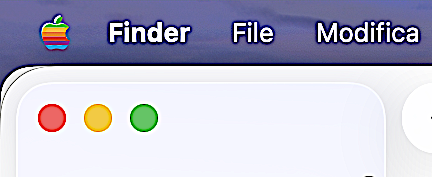
Bring color back to the most iconic corner of your screen. ColorApple dresses the Apple in your menu bar in the six hues that made personal-computer history, or in one of ten themes you can choose from.
Version 0.5.1 · macOS 14 or later · Apple Silicon and Intel
How it works
One click to turn it on.
-
01
Launch ColorApple
The Apple in your menu bar puts on the six classic colors.
-
02
The Apple menu stays put
It stays clickable, exactly where you expect to find it, and keeps you company while you work.
-
03
You decide
Turn the effect on or off at any time. With launch at login, it's ready every time you start your Mac.
Nostalgia
A touch of nostalgia, every time you open your Mac.
The six hues that made personal-computer history are back in the most iconic corner of your screen.
- Green
- Yellow
- Orange
- Red
- Purple
- Blue
Themes
Choose your Apple.
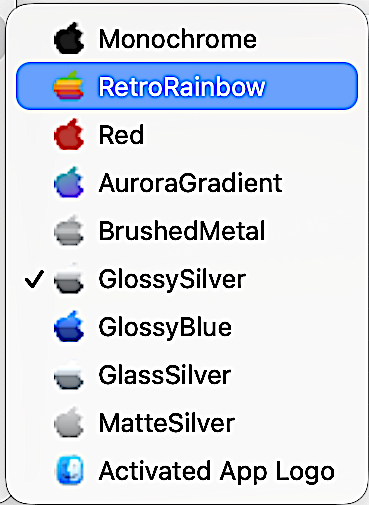
Not just the six classic colors. From the palette menu, pick the Apple theme and switch look whenever you like among ten themes: from the retro rainbow to metallic sheens.
- Monochrome
- RetroRainbow
- Red
- AuroraGradient
- BrushedMetal
- GlossySilver
- GlossyBlue
- GlassSilver
- MatteSilver
- Activated App Logo
Features
Small, discreet, reversible.
The six classic colors
Green, yellow, orange, red, purple and blue on the Apple in your menu bar.
Ten themes for the Apple
From the classic rainbow to Red, GlossyBlue, BrushedMetal and more: pick the one that suits you.
Clickable Apple menu
The menu works as always, in its usual place.
Turn on and off
Turn the effect on or off at any time, from the palette button in the menu bar.
Launch at login
ColorApple can start on its own when you log in to your Mac.
No system files modified
The color is added to the menu bar without touching macOS files.
Installation
Ready in a minute.
-
01
Drag it to Applications
Open the downloaded zip, drag ColorApple.app into the Applications folder and open it.
-
02
Use the palette
From the palette button in the menu bar you turn the colored Apple on or off, set launch at login, or quit the app.
-
03
Automatic calibration, if you like
From the palette menu choose “Allow automatic calibration…” and authorize ColorApple in System Settings › Privacy & Security › Screen Recording. Without authorization, the original Apple stays visible.
Requirements
What you need.
- Version0.5.1
- SystemmacOS 14 or later.
- MacApple Silicon and Intel (universal build).
- SignatureSigned and notarized app.
- DownloadZip file, about 3.1 MB.
- PermissionsScreen Recording, for automatic calibration (optional); Accessibility, optional.
Functional testing on Intel Macs and when reconnecting an external display is not yet complete.
FAQ
Frequently asked questions
No. ColorApple adds color to the Apple in the menu bar without modifying macOS files.
Yes. The Apple menu stays clickable and exactly where you expect to find it.
Yes, you can turn the effect off at any time and back on whenever you like.
Yes. From the palette menu you can pick among ten themes: Monochrome, RetroRainbow, Red, AuroraGradient, BrushedMetal, GlossySilver, GlossyBlue, GlassSilver, MatteSilver and Activated App Logo.
You can turn on launch at login from the palette button: the colorful Apple will be ready every time you log in to your Mac.
It is used to measure the original Apple so the colors can be aligned precisely. Only the small area of the Apple menu is captured, processing happens on your Mac, and no screenshot is saved or sent. It is optional: without permission, the original Apple stays visible. Accessibility permission is optional too and only narrows the search area. If you authorized a previous version, you may need to renew the permission.
Yes: from the Check for Updates… menu item or, automatically, at most once a day (you can turn it off). The app compares the installed version with the public one linked from this site and, if a newer one exists, opens the site so you can download it. It never installs anything by itself and sends no images or calibration data.
To remove the effect, just quit ColorApple from the palette button. If you enabled launch at login, disable it before deleting the app.
The build is universal and includes both Apple Silicon and Intel. Functional testing on Intel and when reconnecting a display is not yet complete.
No. It is a small utility by Archetipi Digitali, not affiliated with, sponsored or endorsed by Apple.
Your Mac, with a little more character.

More apps from Archetipi Digitali
 AIquoteYour Codex quota, at a glance.Discover AIquote
 ShakeLensAsk about what you see.Discover ShakeLens
 AutohotspotLike on iPhone, but on Android.Discover Autohotspot
 NoteNarrateListen to music. Discover the stories it tells.Discover NoteNarrate
 PodClearThe ad blocker for podcasts.Discover PodClear
 GoneDrag a photo. Erase the extras.Discover Gone
 ShareNarrateGives a voice to what you share.Discover ShareNarrate