 SnapFilo

SnapFilo · for iPhone and iPad
One page. All your screenshots.
SnapFilo is an app that stitches long screenshots into a single image right from the screenshot editor, without going through your camera roll. It also has a Safari extension for iOS that captures long web pages without taking screenshots.
- Stitch from the screenshot editor
- No camera roll detour
- Safari extension for iOS
No account. On-device processing. Up to 12 screenshots per page.
Two ways
No camera roll detour.
Stitch screenshots you have already taken, or capture a long web page from Safari: either way you get a single image. Illustrations, not screenshots of the app.
In the app
Stitch from the screenshot editor.
SnapFilo stitches long screenshots into a single image right from the screen where you crop or mark up a screenshot: tap Share and choose SnapFilo.
Safari extension for iOS
Capture long web pages.
The Safari extension for iOS captures a long web page without you having to take screenshots. It is designed for vertical pages with an end: very long pages are reduced in resolution.
From the screenshot editor, you do not need to save individual screenshots to your camera roll and stitch them later.
Video
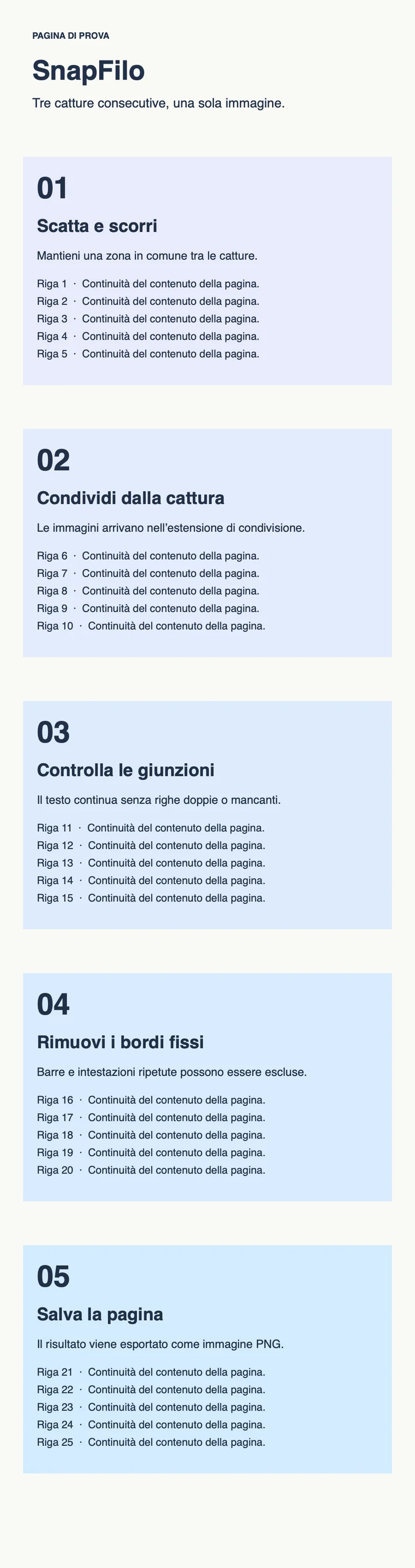
A web page, captured from Safari.
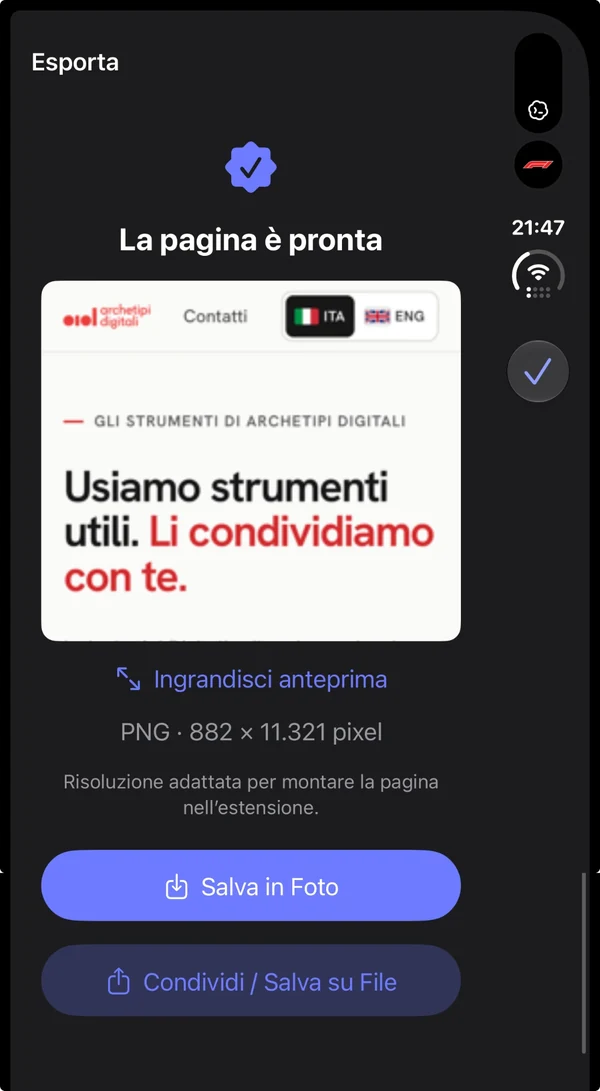
From the Safari extension, choose SnapFilo and tap “Capture full page”: the panel captures the page screen by screen, builds the image and, when it finishes, lets you save it to Photos or Files.
Real video recorded on iPhone Duo, with no audio. The interface is in Italian.
iPhone Duo
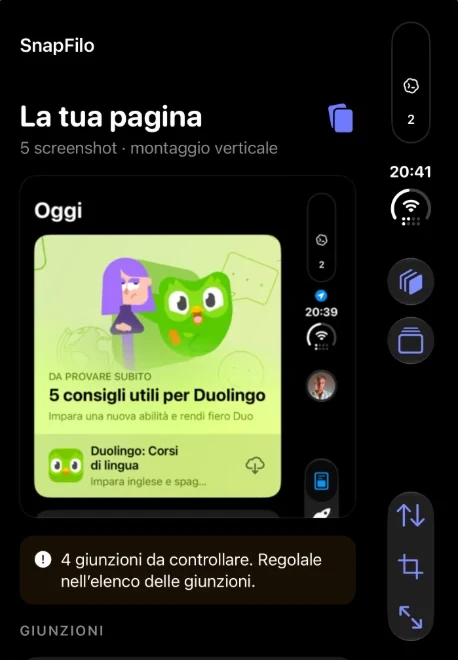
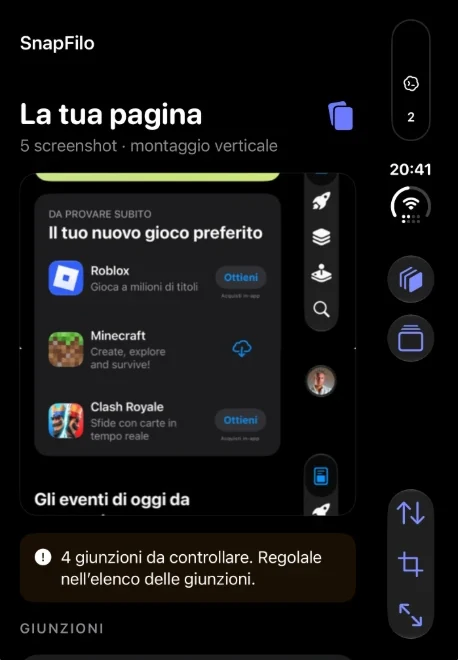
Made for iPhone Duo. Closed and open.
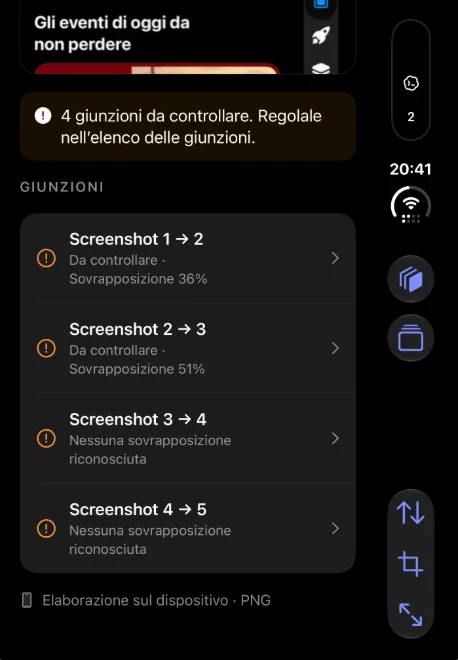
The Safari extension adapts to both displays: closed, the capture panel sits on the outer display; open, the same panel opens out across the inner one.
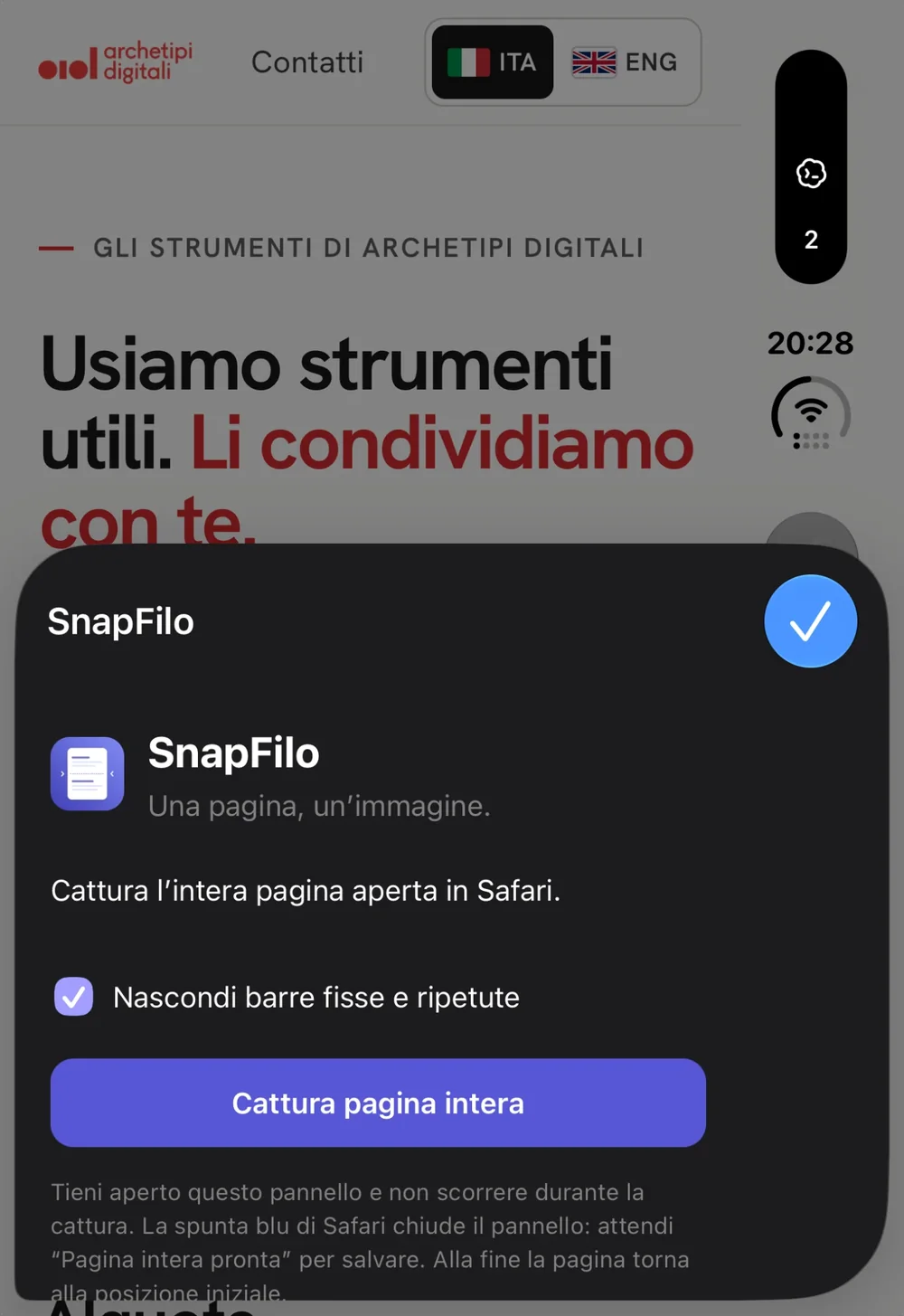
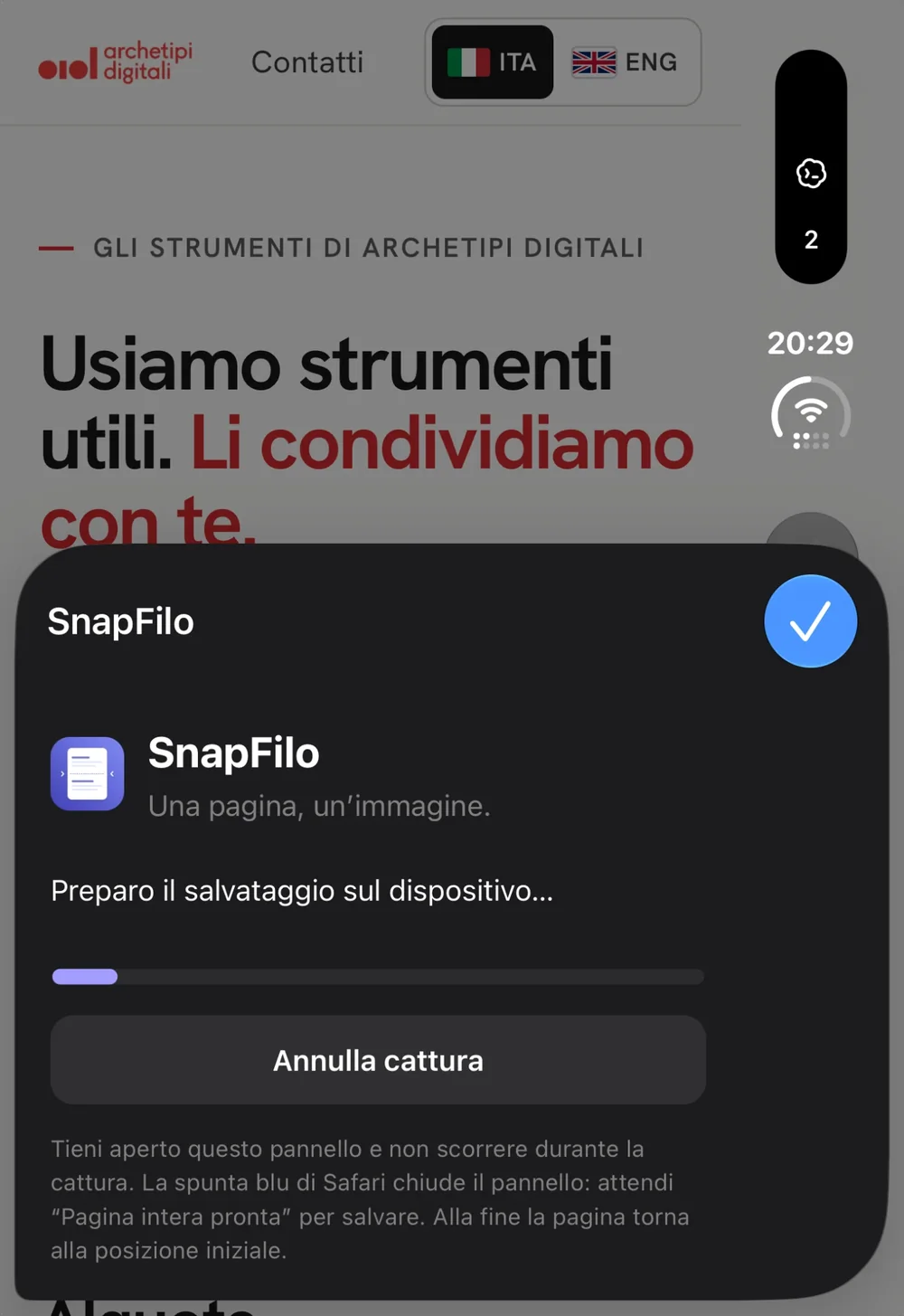
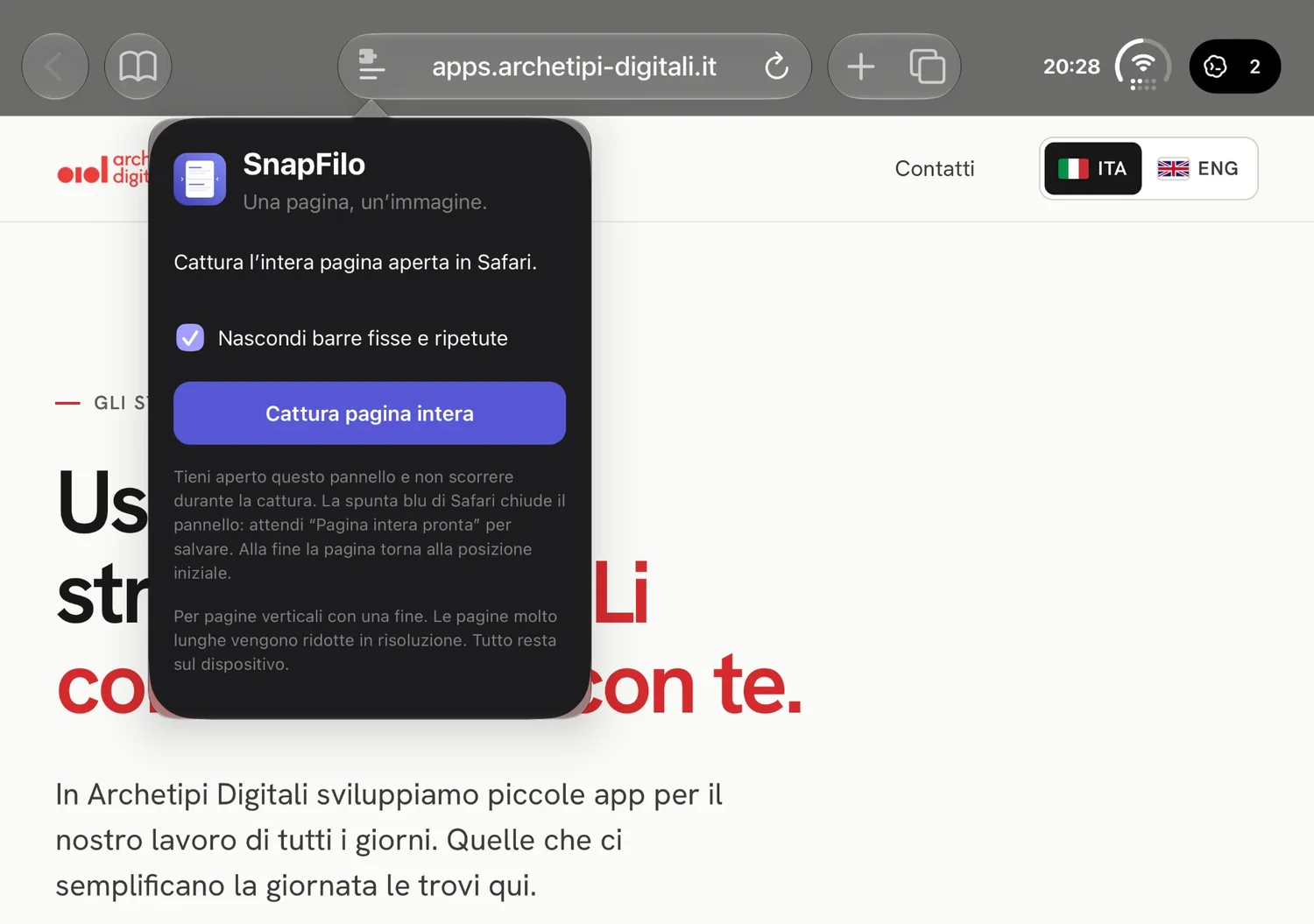
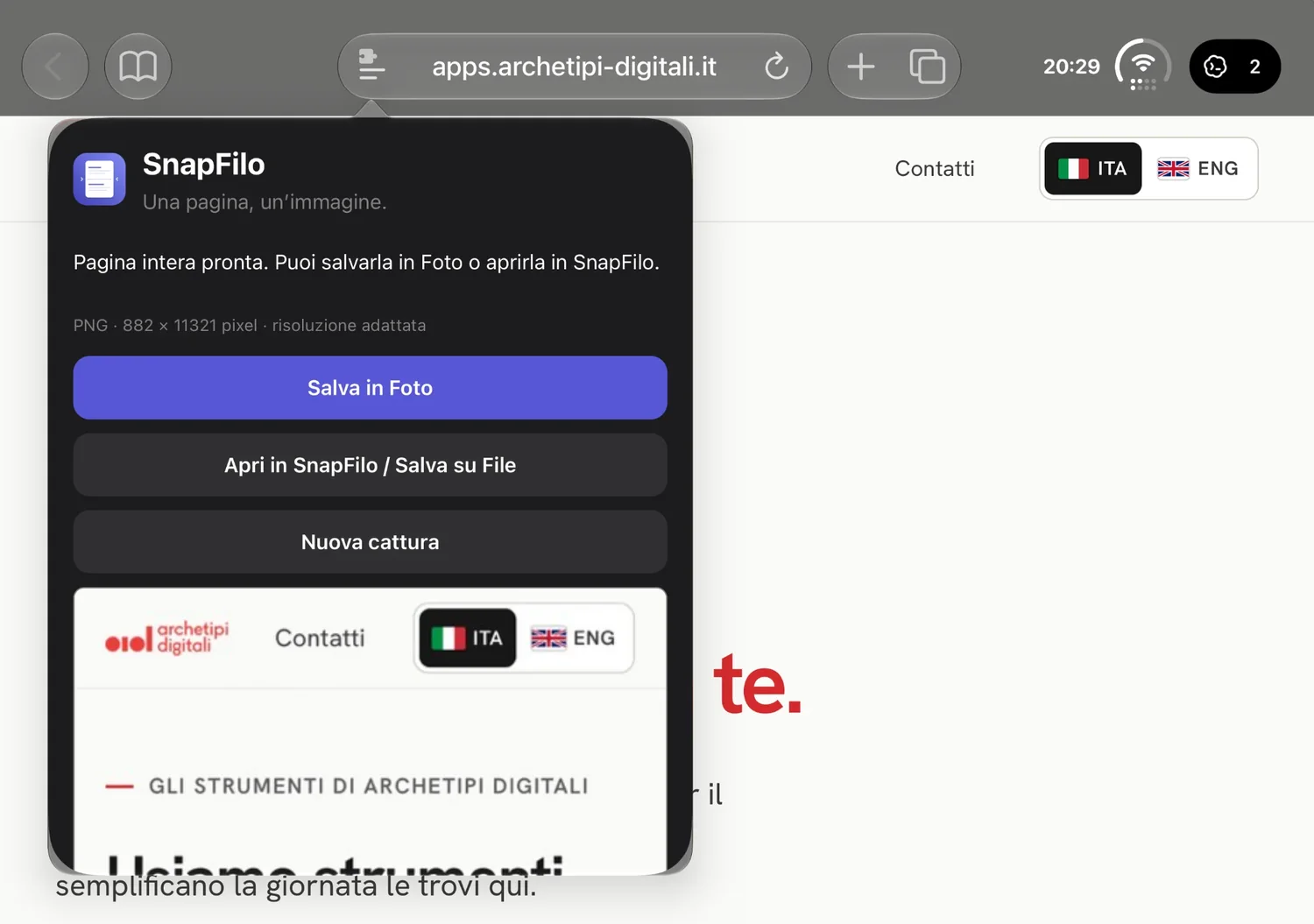
Real screenshots of the Safari extension on a sample page. The interface is in Italian.
From screenshots
From screenshots to a complete page.
Illustrations of the steps, not screenshots of the app.
Capture and scroll.
Keep some content in common between consecutive screenshots.
Share from the screenshot editor.
On the screen where you crop or mark up your screenshots, tap Share and choose SnapFilo. Look under More the first time.
Stitch and save right there.
Check the order and joins, then create the single image inside the share extension, without going through your camera roll.
SnapFilo works with the images you share. When you add more, you can continue your saved composition or start a new page.
Demo
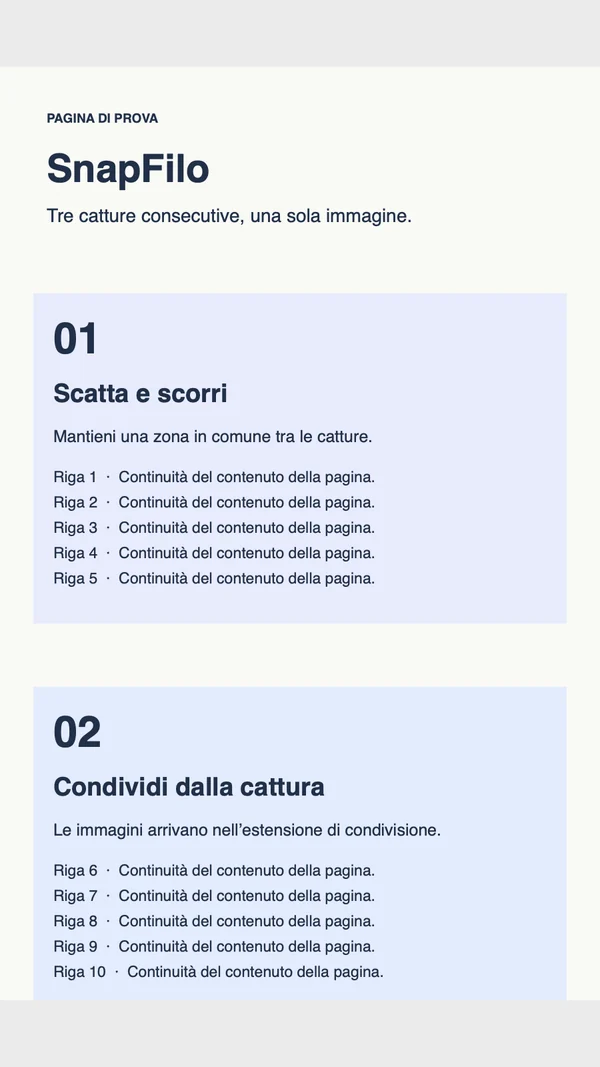
Three captures. One image.
Overlapping content helps SnapFilo find where the screenshots join. Check the result and adjust a join whenever needed.
Screenshot 1
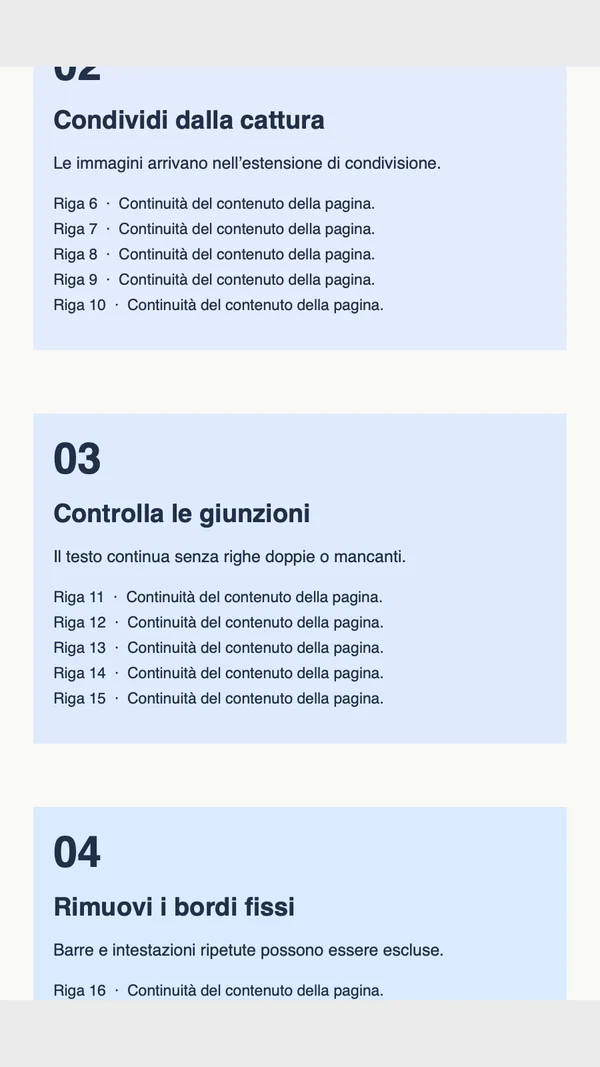
Screenshot 2
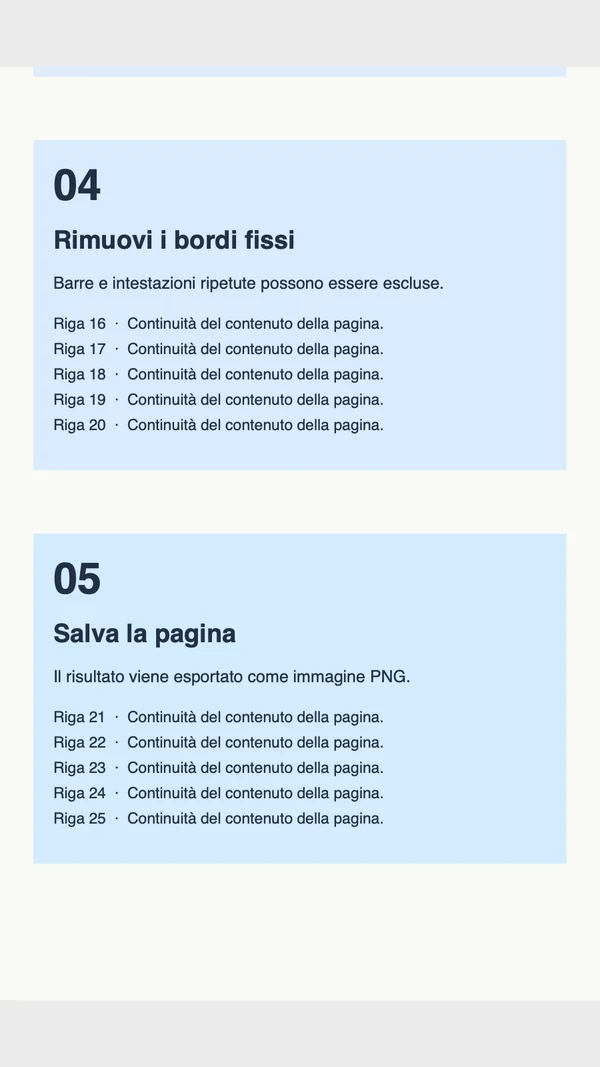
Screenshot 3
Controls
Get the result you need.
Set the order.
Arrange captures from top to bottom and remove the ones you do not need.
Trim repeated edges.
Adjust the top and bottom crop to exclude bars and headers repeated in every capture.
Check the joins.
Alignment is suggested automatically. Adjust it manually when the content is ambiguous.
Save a PNG.
Create a vertical image to save to Photos or share as a file.
- Up to 12 screenshots per page
- Captures need to share some content
- PNG up to 1440 px wide
Local processing
Your screenshots stay on your device.
SnapFilo does not require an account or upload images to a server to stitch them. Photos permission is used to add the final image to your library.
Frequently asked questions
FAQ
Is there a Safari extension?
Yes. The Safari extension for iOS captures long web pages without you having to take screenshots.
Can I start from the screenshot editor?
Yes. Open Share on the screen where you crop or mark up a screenshot, then choose SnapFilo. The composition opens inside the share extension without launching the main app, and without saving the individual screenshots to your camera roll first.
Do the screenshots need to overlap?
Yes. Capture consecutive sections of the same page with some overlapping content. Blank areas, repeated elements or unrelated images may need manual adjustment.
How many screenshots can I combine?
Up to 12 in one vertical composition. You can reorder or remove them before exporting.
Can I adjust the result?
Yes. Check the preview, adjust the joins and crop repeated top and bottom edges.
What file format does it save?
A PNG image. The current version exports up to 1440 pixels wide and about 10 megapixels overall. Very long compositions are scaled down, with final dimensions shown before saving.
Is it available yet?
SnapFilo is in preparation. An installation link will be added when it is available.
How do I use the Safari extension?
Open the page in Safari, choose SnapFilo and tap “Capture full page”. Keep the panel open and do not scroll during capture: when it finishes the page returns to its starting position, and you can save the image to Photos, open it in SnapFilo or save it to Files.
Does it work with any page?
For web pages you can use the Safari extension for iOS. For other content you can share screenshots from the screenshot editor, but stitching needs continuity between the images. SnapFilo cannot retrieve images you have not shared.
Keep the whole page in the picture.
SnapFilo is in preparation for iPhone and iPad. The installation link will appear here when it is available.